


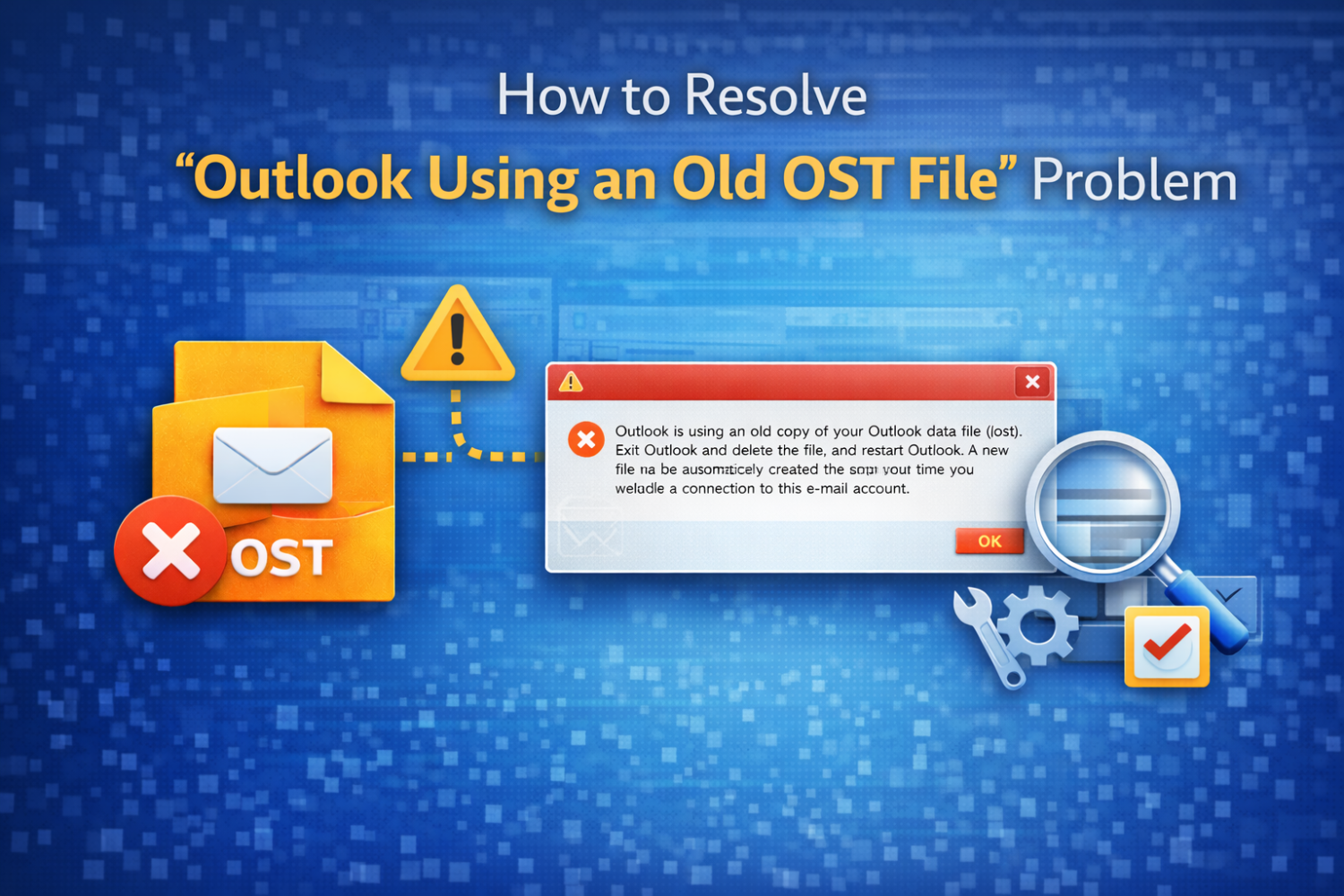
Users who use Microsoft Outlook sometimes have a strange problem where Outlook keeps loading an old OST file instead of syncing new mailbox data from the server. Outlook still uses old data even after reconfiguring the account or reconnecting to the server. This problem can make emails disappear, folders become out of date, or cause syncing errors that get in the way of work.
The "Outlook using an old OST file" problem usually happens without any warning. Outlook opens normally, but emails don't update correctly. We'll talk about what this problem is, why Outlook uses an old OST file, how to fix it manually, and what to do if Outlook can't reconnect to the OST file but your mailbox data is still important.
What Does “Outlook Using an Old OST File” Mean?
When Outlook is in Cached Exchange Mode, it makes an OST (Offline Storage Table) file. It keeps a copy of mailbox data on your computer and syncs it with the Exchange or Microsoft 365 server.
When Outlook starts, it uses an old OST file when
- The file is connected to an older Outlook profile.
- The settings for the Exchange account have changed.
- Outlook can't make or sync a new OST file.
- Cached Exchange Mode doesn't refresh correctly.
Because of this, Outlook may show old emails, stop getting new ones, or not show recent changes to the mailbox, even though the account is still active.
Common Reasons Why Outlook Uses an Old OST File
Outlook Profile Changes: Outlook should make a new OST file when you make a new profile. Outlook sometimes keeps using the old OST file by mistake, which causes problems with syncing.
Exchange or Microsoft 365 Account Reconfiguration: Changes to mailbox settings, moving the server, or updates to authentication can cause Outlook and the OST file to stop working together.
Cached Exchange Mode Misconfiguration: Outlook might not refresh the OST file correctly if the cached mode settings are wrong or only partially applied.
OST File Corruption: System crashes, forced shutdowns, or disk errors can damage the OST file, which stops Outlook from updating it.
Incomplete Outlook Shutdown: If you don't close Outlook properly, background processes may keep the old OST file locked and use it again.
How to Identify That Outlook Is Using an Old OST File
You might see:
- Emails are not syncing between devices
- Not getting recent emails
- Old folder structure showing up
- Outlook status says "Disconnected" or "Trying to Connect"
- No errors, but the data in the mailbox looks old.
These signs usually mean that Outlook isn't syncing with a new OST file.
Manual Methods to Fix the “Old OST File” Issue
Check Outlook Connection Status
- Start Outlook
- Press and hold the Ctrl key while you right-click the Outlook icon in the system tray.
- Choose Connection Status
If Outlook keeps disconnecting or having trouble with authentication, the OST file won't sync correctly.
Create a New Outlook Profile
- Control Panel → Mail → Show Profiles
- Click Add to make a new profile
- Set up the email account
- Make the new profile the default one.
This usually makes a new OST file, but the old one is still not accessible.
Rebuild the OST File
- Shut down Outlook completely
- Find the OST file on the computer
- Change the name of the OST file
- Start Outlook again
Outlook will make a new OST file and sync the mailbox data from the server again.
When Outlook Cannot Fix the Issue, but OST Data Still Matters
In a lot of real-life situations, the only place to find important emails is in the old OST file. This is especially true when Outlook was offline, or syncing didn't work earlier. After Outlook changes profiles or makes a new OST file, users can't open or attach the old OST file manually.
Outlook can't get to the old OST file again right now, even though the data is still there. Manual troubleshooting doesn't work anymore, and Outlook can't get to the mailbox data.
Advanced Method to Access Data from an Old OST File
You can't open OST files directly because they are encrypted and depend on profiles. To get mailbox data into a format that can be used, you need to use a technical method.
MailsGen OST Converter is a tool that many users use. It lets you convert OST file data to PST, PDF, MSG, MBOX, and EML formats. This lets you get to mailbox data without having to use Outlook synchronization or the original Exchange profile.
Steps to Extract Mailbox Data from an Old OST File
- Download and install the OST conversion tool
- Choose the old or orphaned OST file.
- Scan the file to get the mailbox information.
- See emails, folders, and attachments before you open them.
- Select the output format you need (PST, PDF, MSG, MBOX, or EML)
- Choose a place to go
- Finish the process of converting
- Use an email client that can open or import the converted file.
This method helps you get mailbox data back even if Outlook is still using a new or wrong OST file.
Final Thoughts
The "Outlook using an old OST file" problem can quietly stop you from accessing and syncing your email. This problem is most often caused by changes to your profile, problems with cached mode, reconfiguring your account, or corruption of your OST file.
Rebuilding the OST file or making a new profile by manual method can often fix synchronization problems, but they don't work when the mailbox data is only in the old OST file. Knowing how to troubleshoot manually and use advanced recovery options makes sure that important email data is still available even when Outlook can't fix the problem on its own.
Frequently Asked Questions (FAQs)
1. Why does Outlook keep using an old OST file?
Outlook might still use an old OST file because of problems with cached mode, an incomplete profile refresh, or reconfiguring the account.
2. Can Outlook manually attach an old OST file to a new profile?
No, Outlook doesn't let you attach or import OST files into a different profile.
3. Does rebuilding the OST file delete mailbox data?
When you rebuild the OST file, it gets data from the server again, but any local data that hasn't been synced might not be restored.
4. What should be checked first when emails stop updating?
First, check the connection status in Outlook to make sure it is connected to the server correctly.
5. How can mailbox data be accessed if Outlook cannot use the old OST file?
If Outlook can't open or sync the old OST file and important data is only in that file, MailsGen OST Converter can change the OST file into formats that can be accessed. This lets users get their mailbox data without having to rely on Outlook synchronization.